Take action
$25
HD Video Camera 1080P 30fps Night Vision Video/Audio
Posted about 2 months ago in San Diego, CA
Listed in categories:

Get a second opinion
Chat securely on the app

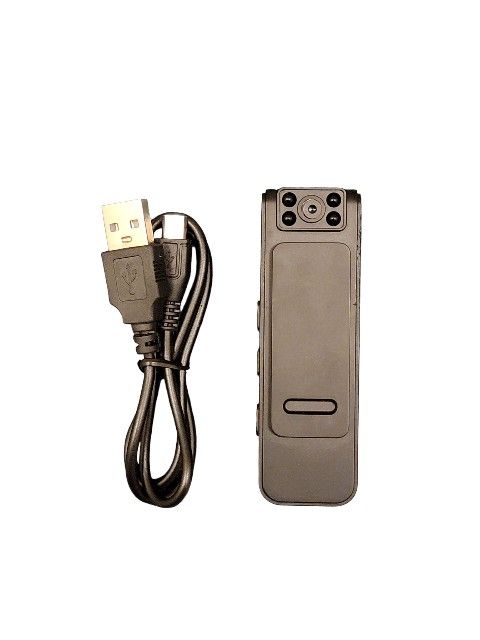
Additional images
Description
User's Manual Please read this manual carefully before use to ensure the correct use of product functions and keep the manual for future query Related Parameters Overall dimensions: 7.5cmX2.5cmX1cm USB interface: USB2.0 High Speed Storage support: TF card Product weight: 23 g Battery capacity: 3.7V/500mAH lithium battery Video format: AVI 1920x1080P recording format: WAV 512kbps Model: D 1 Playback software: Mainstream video player software, such as Storm Video Note: The system software of this product will, occupy a part of the capacity space, and it is normal that there will be differences with the nominal capacity. Power on/off: Push the switch button upward to "start" (the blue light is on) and downward Push Yes "Shutdown" (blue light off) Video Video sync] - VIDEO folder: First turn on the machine (the blue light is on), then push the video key to the "Video" position, the blue light flashes 5 times and turns off, and start recording! (One segment will be saved automatically in 10 minutes, and the recording will continue automatically. You can also push the key to the "Save" position at any time to pause the recording) Recording [separate recording] - AUDIO folder: First turn on the machine (the blue light is on), then push the record key to the "Record" position, the red light flashes 5 times and goes off, and start recording separately! (One segment will be saved automatically in 30 minutes, and the recording will continue automatically. You can also push the key to the "Save" position at any time to pause the recording) Shutdown charging: The data cable is connected to the USB port of the machine, and the other end is connected to the power supply! When charging (the blue light is always on, and the red light is flashing), after charging (both the blue light and the red light are always on), it can be fully charged in about 2 hours. Infrared night vision: The infrared night vision function can be turned on when recording in a dark environment: push the night vision button to "On" to turn on night vision; Push to "OFF" turn off night vision! Connecting the PC: This computer is connected to the computer with a data cable, or unplug the memory card to insert the card reader, and then plug in the computer! After a few seconds, the computer will recognize it and pop up "Removable Disk" or "U Disk" and other marks, and then click to open it. Audio recording is in AUDIO folder and video recording is in VIDEO folder. Click to play it. If the video is not smooth, please download [Storm Video] to play it. Modified on - time.txt: First insert the TF memory card into the card slot of the unit, and then use the data cable to When the machine is connected to the computer, a "removable disk" point appears on the computer Open it, and the time document "time. txt" will appear below. Double click A group of time ormat numbers appear at the meeting at [remember; when modifying Format cannot be changed, only numbers can be changed] 1 If the format displays 2022-01-0101: 01: 01 N (N is displayed without time watermark) 2. Change the format to display 2022-01-01 01: 01: 01 Y (Y is displayed with time watermark) 3. The system defaults to no time watermark display. If time is required For watermark display, change the N at the end of the time format to Y, and then Move the number (year month day hour: minute: second), and then click the text "File" option in the upper left corner of the file, select "Save" and The computer pops up from the computer, and the time setting is completed.
Details
Condition
New
Type
Pocket
Item location map
Map is approximate to keep seller’s location private.